
I’ve been living with this error in my Local app for, I don’t know, two years?
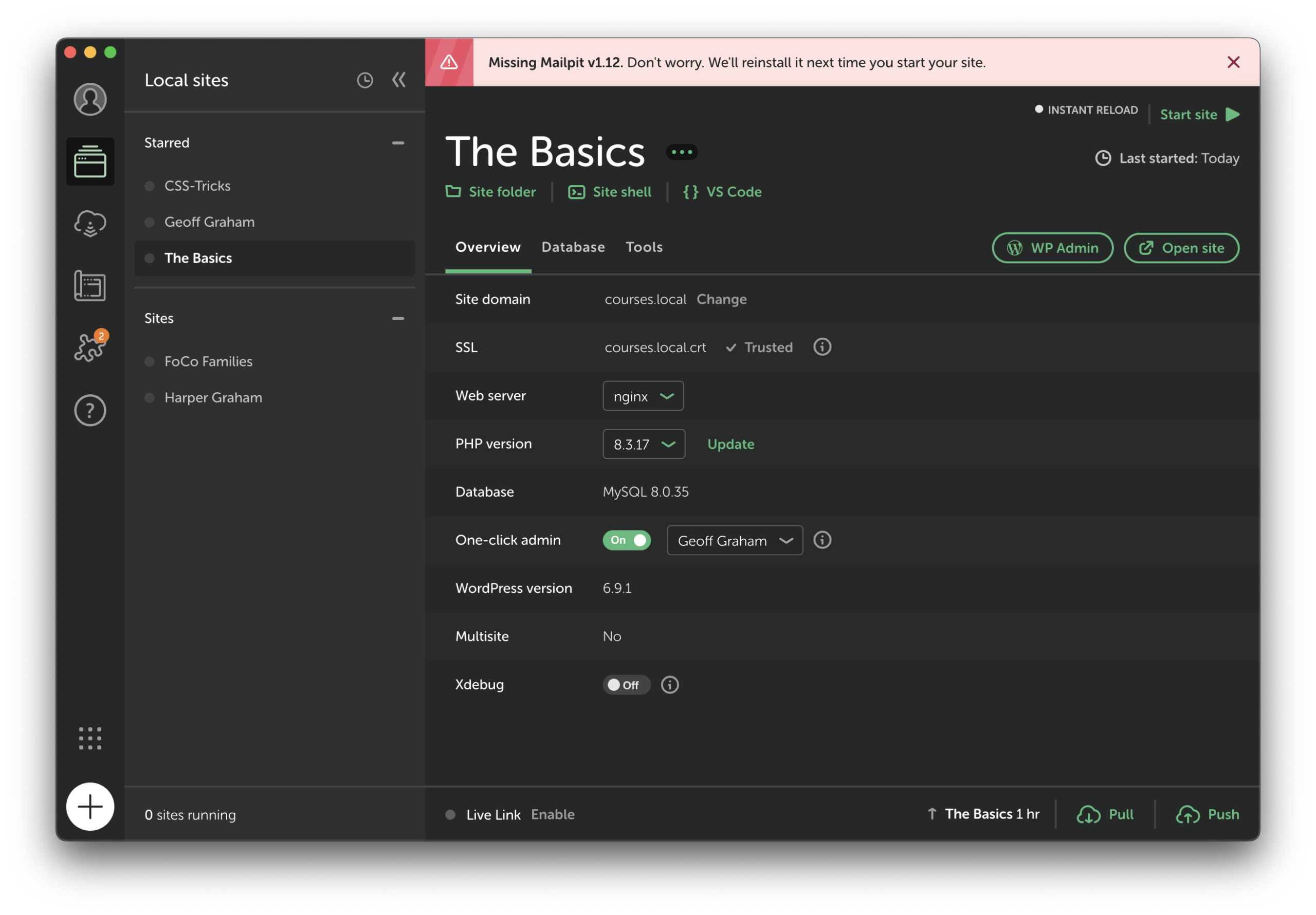
Mailpit is some sort of thing that captures WordPress emails so that you can send and receive them, you know, locally. Honestly, I didn’t even know it was a thing until the error popped up. I’m not sure if it’s the same thing or complement to the Mailhog service, but whatever. It’s the error I care about.
The error claims that Mailpit version 1.12 is missing. But no worries, Local will reinstall it for you the next time your site fires up.
Except it doesn’t. Like I said, I’ve been living with the error for two decades years.
There’s no clear path to re-installing the dang thing. The official support response is to do some sort of clever maneuvering through your system files and remove the Mailpit source folder. From the Finder → Go on macOS:
~/Library/Application Support/Local/lightning-services…and delete the “mailpit-1.12.1+0” folder. Leave the Finder window open, though, because you can confirm whether it reinstalls or not next time you start your site(s). But to do that, stop all the sites that are currently running, quit Local, then open it back up.
Then start one of your sites. Do you see the Mailpit folder in Finder again? I did, but the error message was still there. I saw there was another Mailpit folder in Finder for a newer version, so I deleted both folders, the rinsed, washed, and repeated. No dice.
I did wind up solving the error, but it wasn’t pretty. I exported all my Local sites:
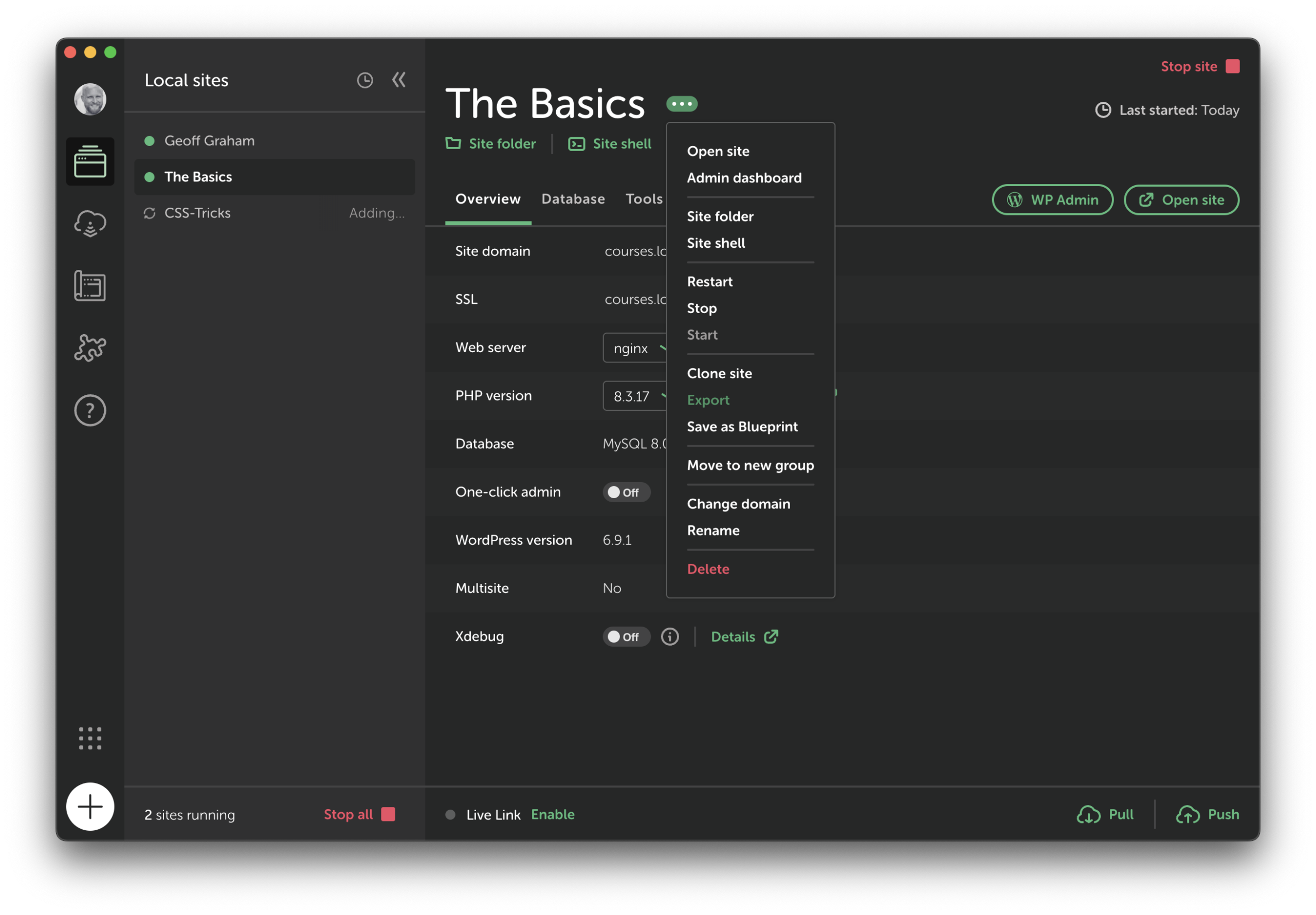
Then, the fun part: Uninstall the freaking app. That’s right, go to Applications and trash the sucker.
You know what’s next. Go to the Local downloads page and snag the latest copy. Install the new guy. Import those sites you exported, one by one. And, boom, no more error!
Except now your system may not like the SSL certificates of those sites you just re-imported. If that’s the case — like it was for me — then you have to click the “Trust” option next to the SSL setting when the site is running. And if that doesn’t work — again, like what happened for me — then you have to go all the way into your macOS Keychain Access and manually trust each darn certificate individually.
Easy as running a marathon… barefoot.
2 Comments
You’re killing me Geoff. I hate this error so much but I absolutely do not have time to export every site, reinstall the app, and re-import all of them haha. It would have to be the rainiest of all rainy days.
I feel ya. It look at it as an opportunity. Hit “Export” and get the groceries knocked out. Hit “Import” and treat yourself to a warm bubble bath so long you get pruny.
Then repeat for every site!